Notion Page import
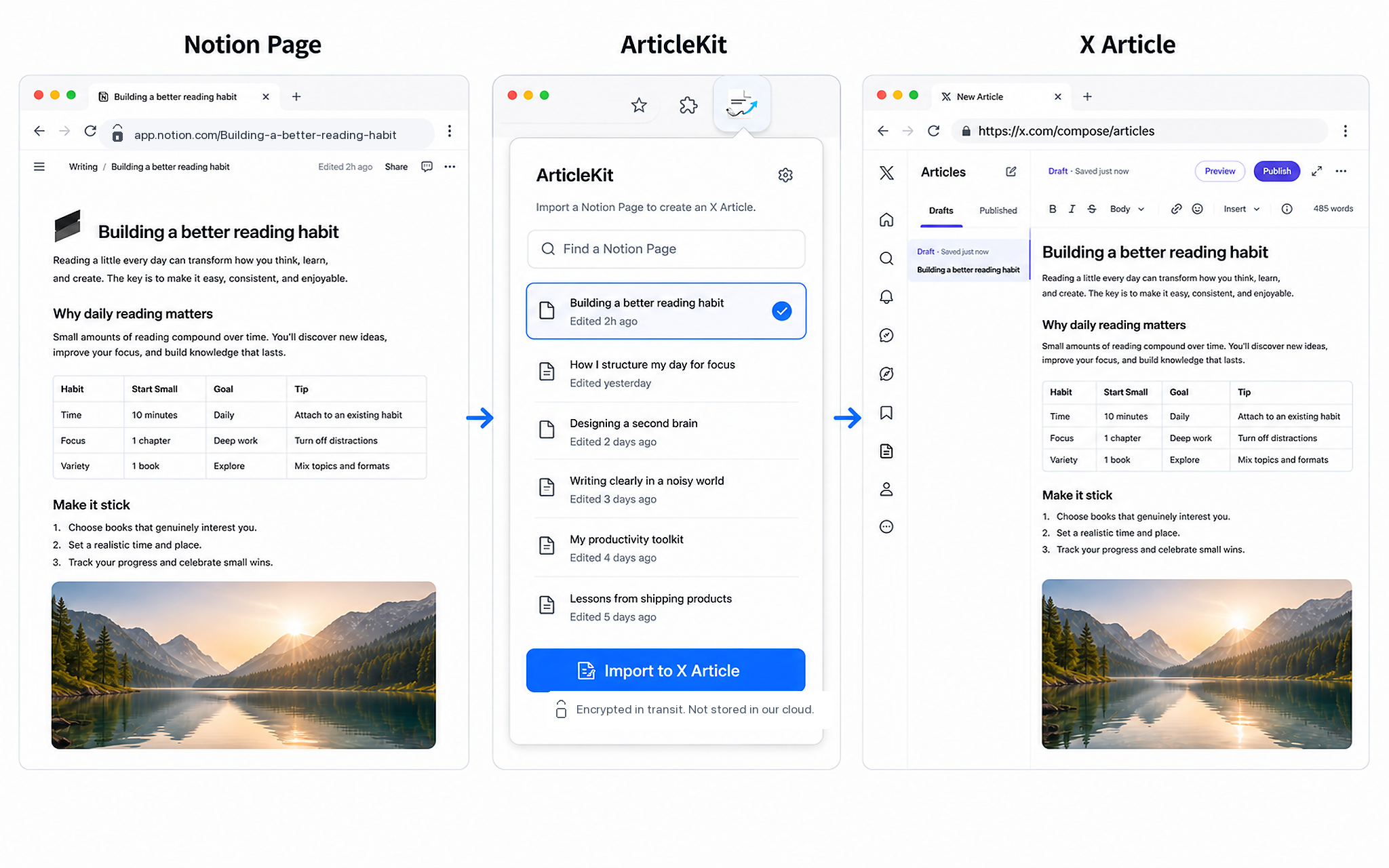
Search connected Notion content from the extension or paste an app.notion.com URL. ArticleKit preserves headings, lists, tables, images, and links where X supports them.
Notion Page and Markdown to X Article
Import polished writing from Notion Page content, Markdown files, or pasted Markdown into the X Article editor without handing ArticleKit your X login.
Prepare the article in Notion or Markdown, let ArticleKit carry over the structure, then finish the final edit inside X Article.
Search connected Notion content from the extension or paste an app.notion.com URL. ArticleKit preserves headings, lists, tables, images, and links where X supports them.
Upload a .md file or paste Markdown text. ArticleKit handles headings, lists, quotes, code blocks, links, images, footnotes, frontmatter, inline HTML, and GFM-style tables.
ArticleKit opens x.com/compose/articles and fills the editor, so preview, edits, and publishing stay in X.
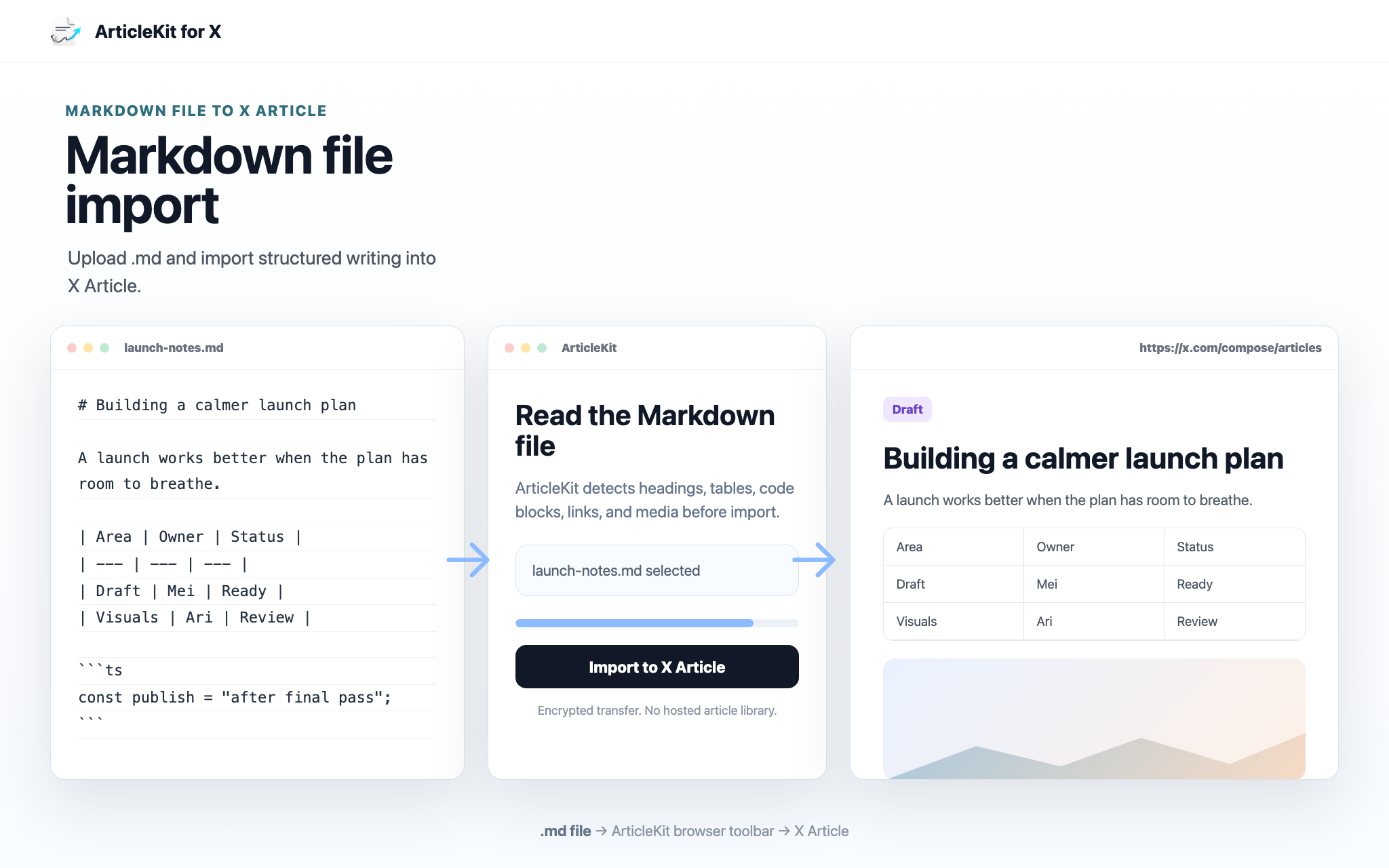
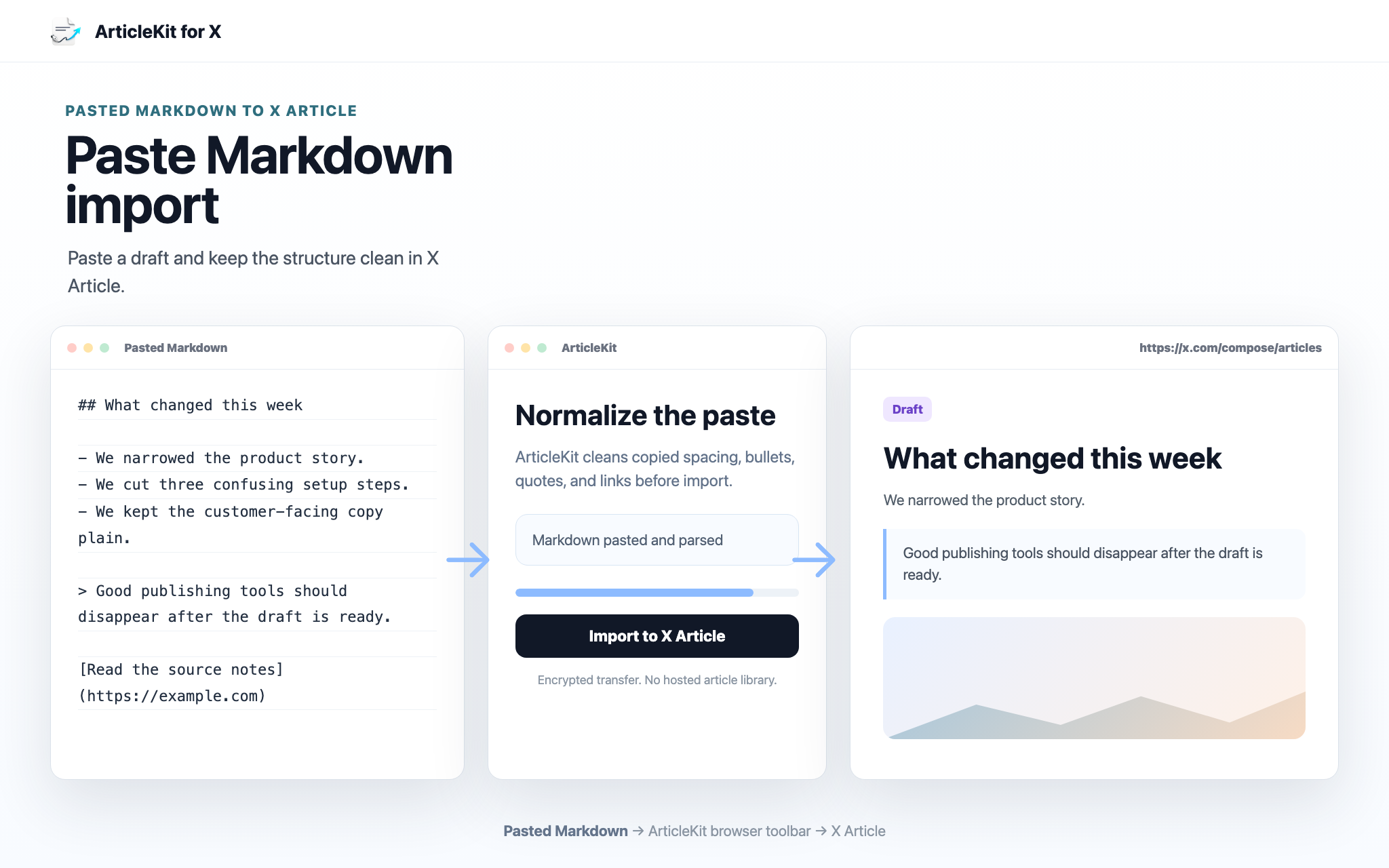
Each row shows one import mode from source to ArticleKit to the X Article editor.
Upload a .md file and move a finished long-form draft into X Article with headings, tables, code, links, and images kept readable.
Paste Markdown directly when the draft is in a chat, note, document, or editor that you do not want to export first.
Search connected Notion content or paste an app.notion.com URL, then move the selected Notion Page into X Article without exporting through Markdown.
Start the trial, install the extension, and open ArticleKit from your browser toolbar when you are ready to import.
Pick a Notion Page, paste an app.notion.com URL, upload a Markdown file, or paste Markdown directly.
ArticleKit imports the content into X Article, where you can make the final pass and publish when it feels right.
ArticleKit moves only the content you choose. Your X session stays in the browser, Notion access can be revoked at any time, and imports are transferred over encrypted HTTPS.
ArticleKit does not ask for your X password, cookies, or auth tokens. You publish from your own X session after checking the result.
Connect only the Notion workspace content you choose. ArticleKit uses that access to search and import selected Notion Page content, and you can disconnect it later.
ArticleKit transfers images and keeps table structure readable so long-form pieces arrive in X Article with less cleanup.
Article text is processed to complete the import, not kept as a hosted copy in our cloud. Media may be temporarily cached only to transfer it reliably.
Start with a Notion Page or Markdown document. ArticleKit handles conversion, media transfer, and table structure so you can publish from the editor you already use.